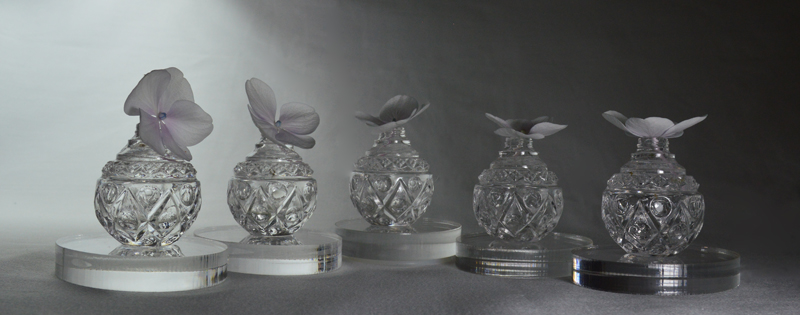
This color photograph is from a series we took to practice Still-Life Studio Lighting. The set-up is white flowers in clear glass, on clear acrylic, on a white background with two lights.
There are some duplicate features on our digital camera and on the computer’s Adobe Photoshop. So, this seems like an opportunity to continue the experiments with this photograph and compare the choices.
Camera : Warm filter Photoshop: Warm filter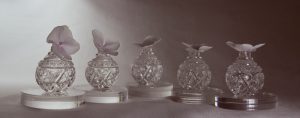
Camera: Cool filter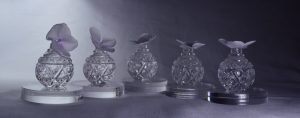 Photoshop: Cool filter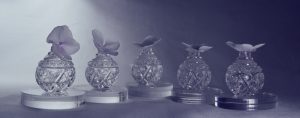
Camera: Black and White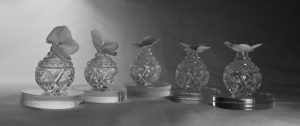 Photoshop: Black and White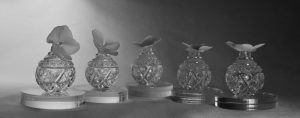
Camera: Cyanotype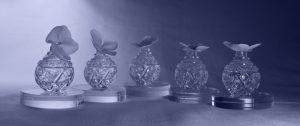 Photoshop: Cyanotype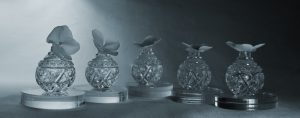
Camera: Sepia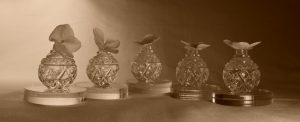 Photoshop: Sepia (click on the “brown tree” image)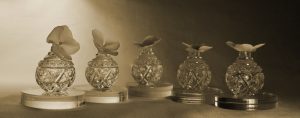
Photoshop: Purple (click on the “Purple Tree” image)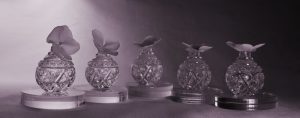 Photoshop: Red (click on the “Red Tree” image)
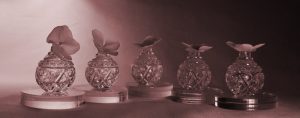 Photoshop: Green (click on the “Green Tree” image)
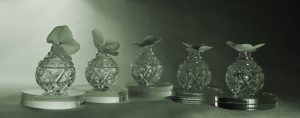 Photoshop: Oops! Ran out of Tree images to click on!
Interesting. Reaction: casting a warm or cool light on the actual still-life set-up resonates more with us for the immediacy of making and taking the picture.
The B&W setting on the camera looks useful for assessing the arrangement of hue values, especially when making a composition mixing matte and shiny items. The larger screen of the computer makes it easier to decide on nuances for later black and white conversions.
Also, how much influence does the viewing screen light have over the photograph colors? We’ll have to print up some of these examples eventually to really compare all of the options.
Frankly, there is a pretty good chance that we won’t press that Purple button again until we have a photograph of a cow (sometimes you just have to go with the obvious!)



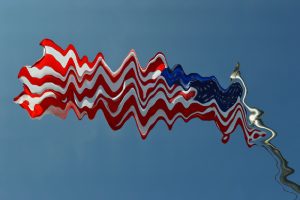
 (Filter, Texture, Stained Glass)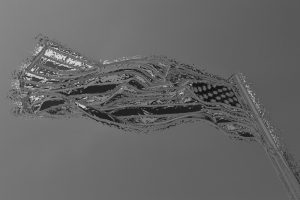
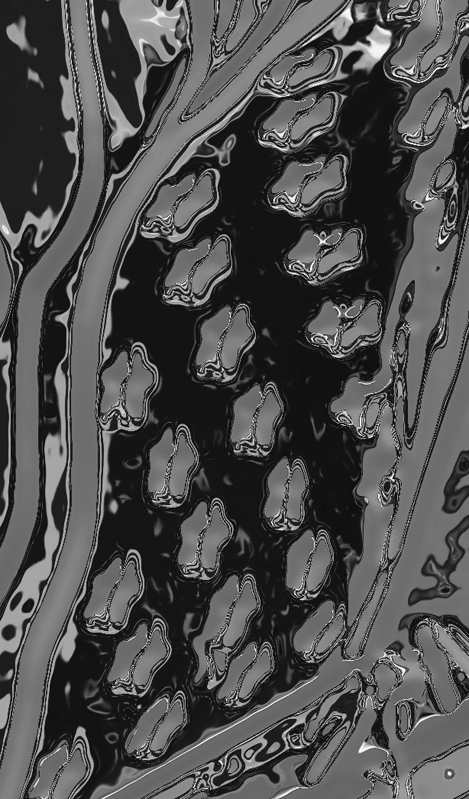 “Star-Spangled Abstract” (Enlarged, Cropped, Rotated part of Chrome filtered version above)
 “Red, White and Blue in the Wild Blue Yonder”
 “What a great day at Long Beach, WA”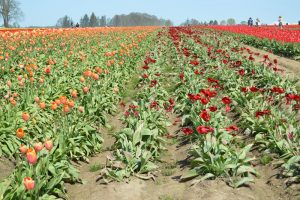
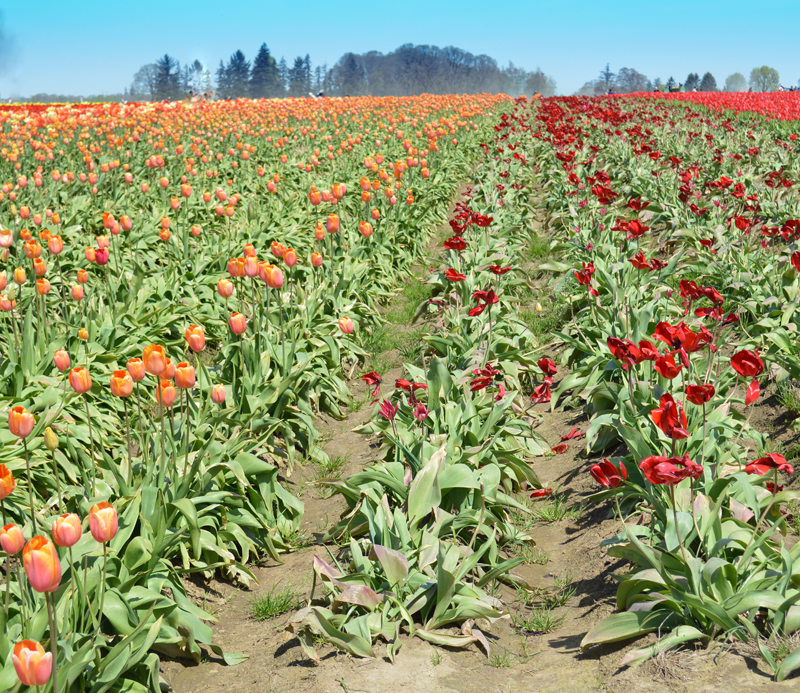 “Perspective Lines Leading to the Horizon Line”, Wooden Shoe Tulip Field
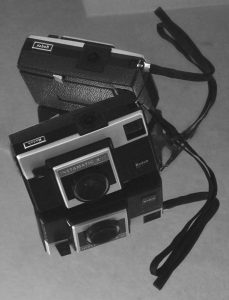
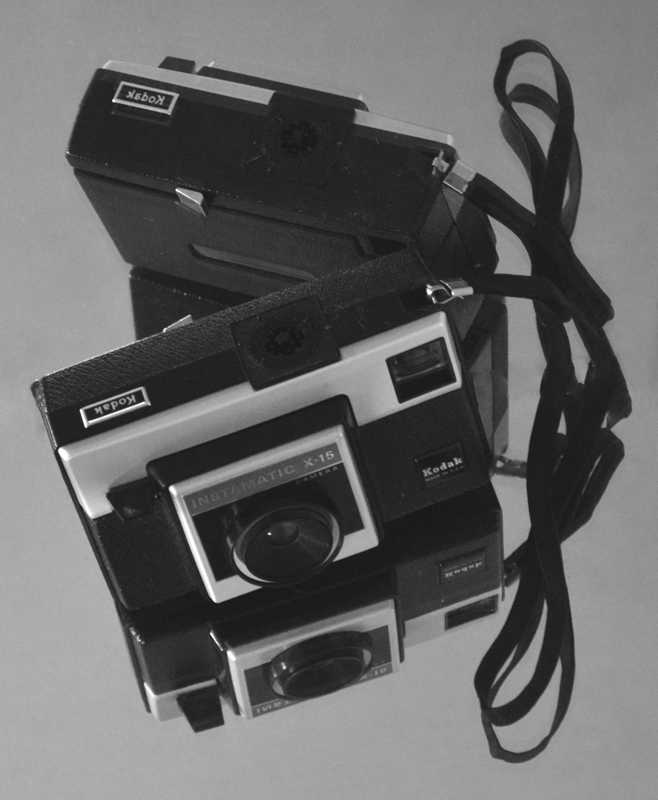 “First Camera, a gift from ‘Santa'”
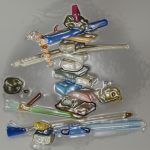
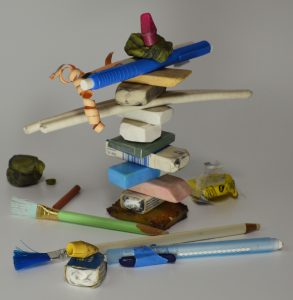 “Eraser Still-Life” cropped and shadows-lightened version.
 “Eraser Still-Life” with Angled Strokes Photoshop filter
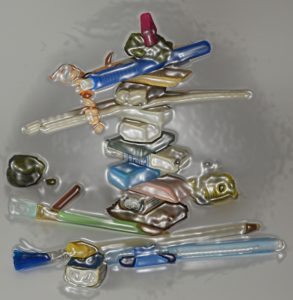 “Eraser Still-Life” with Plastic Wrap Photoshop filter
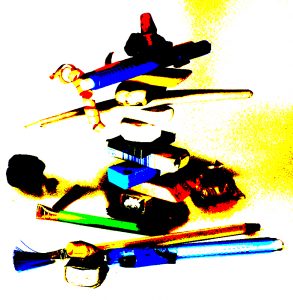 “Eraser Still-Life” with Posterize Photoshop filter
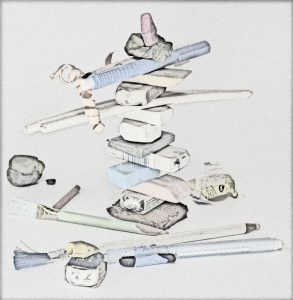 “Eraser Still-Life” with Pencil Lines Photoshop filter
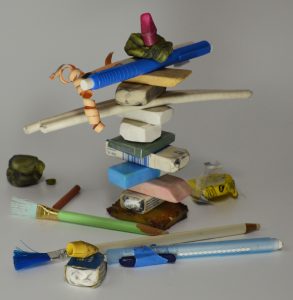 “Eraser Still-Life” with dodging to lighten a few spots
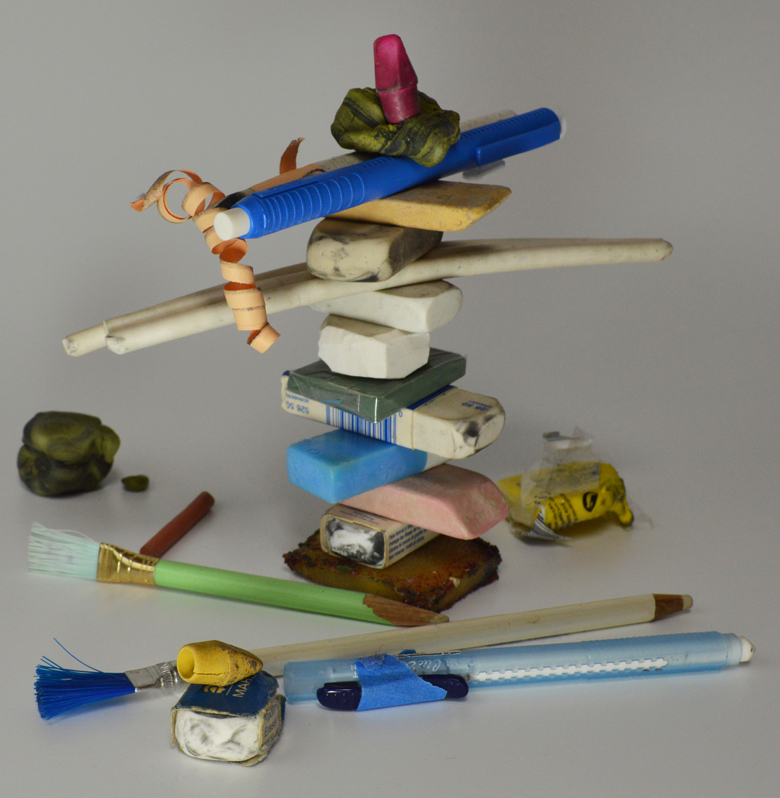 “Eraser Still-Life” various erasers from our studios, “Dodge” feature example
 While learning about unfamiliar Photoshop options for our digital photographs the “undo” button has become our most used option. For those unfamiliar with this feature, it erases experiments so it is risk-free to try out all sorts of new looks for a photograph. Click on “Edit” at the top of the screen, click on “Undo” when it shows up and Voila! the photograph is ready to try something else wild.
 rewedging. With knitting, “tink”* is the new word for unknitting. With crochet, one tug on the strand and it ravels as if watching animation. Drawing not making the mark? Turn the paper over and start afresh. Is the typewriter spewing drivel? Zip out that paper, tear it up, toss it in the blender with water and make a cast-pulp sculpture tribute to your Muse.
 Creativity is a PROCESS. Sometimes it seems one step forward and 90 steps backwards. Well, isn’t that choreography? – ah ha! more creativity!